How to Create a Wylie App Account
How to Create a Wylie App Account:
You should have received an invitation by email from your clinic with the subject "Invitation to use our mobile app", where you will be prompted to follow a link to register an account.
In the email, follow the first link and enter your email address.
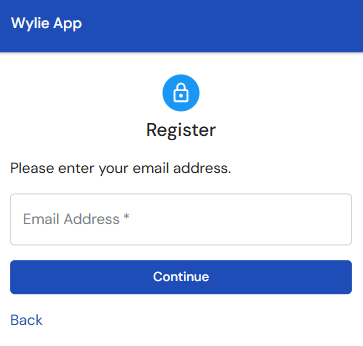
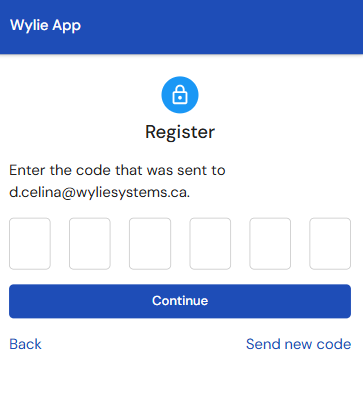
Then, you will receive another email with a verification code. Go to your email and copy the code, then paste the code where it indicates 'Enter the code that was sent to' on the app and select 'Continue'.
You may be prompted to create a passkey for quicker logins in the future. If you select 'Yes Please', then 'Create Passkey', your device will then prompt you to create a passkey, as this is a process specific to your device. Once you have successfully created a passkey, you will then be logged into the app.
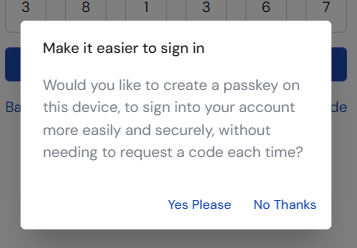
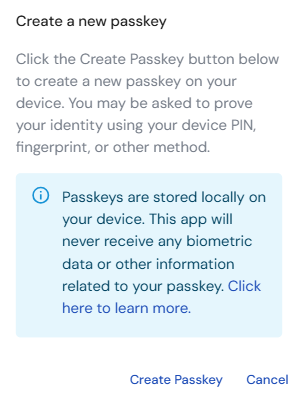
If you choose 'No Thanks' to creating a passkey, you will be prompted to enter a verification code every time you log in.
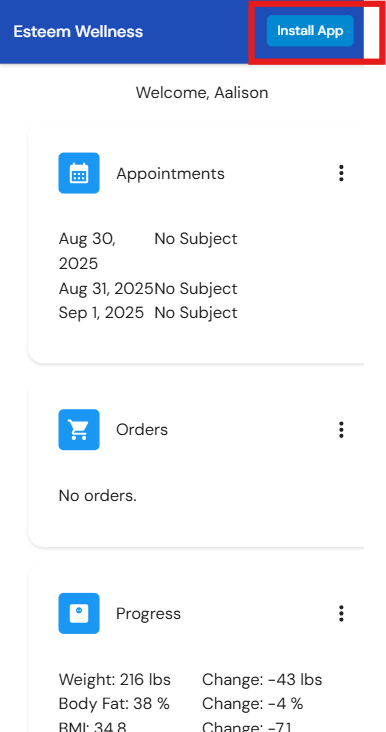
Once you have logged in, if you see the 'Install App' button in the top right corner, select it, and then you will see the Wylie W logo on the home screen of your device.
If you do not see the 'Install App' button, then select the share icon in your browser, which looks like this:

Then scroll through the options until you see the option to 'Save To Home Screen' and select. Then select 'Add' in the top right corner.
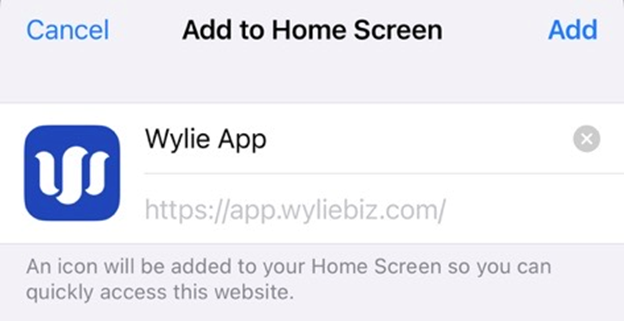
Then you will see the App on your home screen for easier access. 
Article Number: 81
Author: Aug 29, 2025
Last Updated: Feb 27, 2026
Online URL: https://help.wyliebiz.com/article.php?id=81