Auto-billing - Recurring Service
Step 1: Create a preorder which includes the products, services, and or packages you wish to sell on a recurring basis.
- Navigate to the sales register in Wylie.
- Add all the items you wish to include in the recurring charge to the cart.
- Select 'Capture Preorder' and give it a name that you will recognize.
- Select 'Save'.
Step 2: Ensure the client you wish to sell to has a credit card on file in Wylie.
- Navigate to the client's profile and select the 'Card on File' tab.
- Select 'Add Card on File' and enter the required credit card information for this client. OR select 'Send COF Link' to request that the client add their credit card through a secure link.
Step 3: Create a 'recurring service' auto-billing schedule.
- Select the 'Auto-billing' tab in the client's profile.
- Select 'Add New' button at the top of the table. You will then see the autobilling set-up form that you will need to fill out with the specific parameters.
- Start by checking the box that declares you have permission to change the card on file.

- Choose the 'Schedule Type', 'Recurring Service', then select the preferred 'Payment Method'.
- Choose the 'Preorder Name' of a saved preorder that you would like to charge the client for on a recurring basis. You must first create the preorder in the sales register. This preorder can include a combination of services, products, and packages.
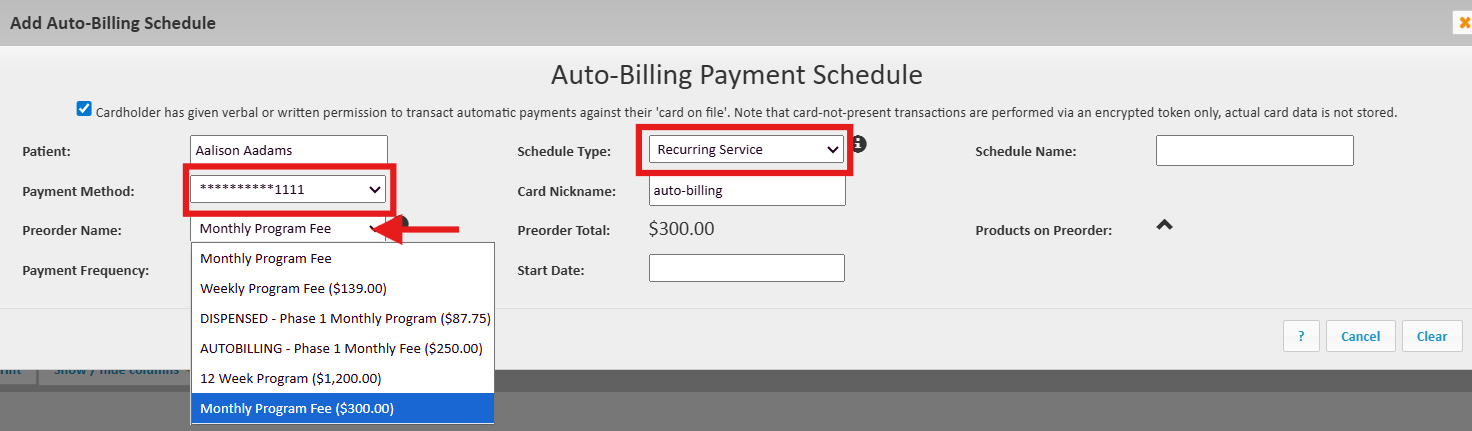
6. Choose 'Payment Frequency', then 'Start Date'.

7. You have 3 options for choosing when the recurring payments will stop.
- 'Schedule is cancelled': When an employee manually cancelled the auto-biling schedule.
- 'Payment Count': Enter the number of recurring payments that will be auto-billing before the schedule is stopped automatically.
- 'End Date': Choose the date that the autobilling schedule will be canceled on.

8. Select whether you would like to email a transaction receipt and if you would like to notify the client in advance of the automatic charge.

9. Lastly, select 'Save'.
Article Number: 82
Author: Sep 30, 2025
Last Updated: Oct 2, 2025
Online URL: https://help.wyliebiz.com/article.php?id=82