How to Reconnect My Zoom Account
Follow the steps below to reconnect your Zoom account in Wylie.
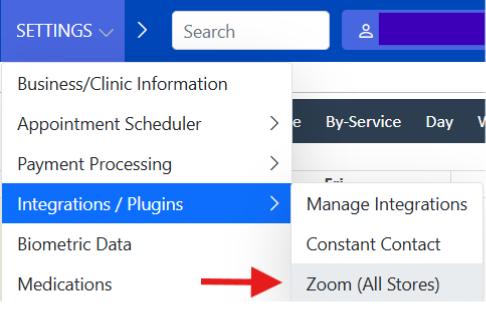
1. In Wylie, select the 'Settings' menu, then 'Integrations/plugins' and choose the 'Zoom' integration option.
2. Select the 'Disconnect Zoom account' button.

3. Then, select the same button that should now read, 'Connect Zoom account'.

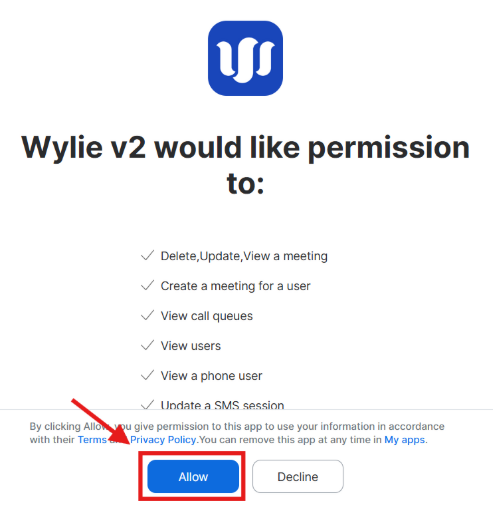
4. You will then be directed to the Zoom permission page, where you will select 'Allow'.
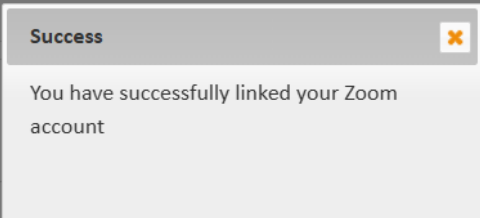
5. You will then be redirected back to Wylie and see a pop-up that reads 'You have successfully linked your Zoom account'.
If you do not see this pop up, please contact Wylie support by phone: 1-888-688-1674 or email: info@wyliesystems.ca
Note: You do not need to reconnect any employee accounts. The 'Employees/Staff' page in Wylie will remember your settings.
Article Number: 90
Author: Mar 23, 2026
Last Updated: Mar 23, 2026
Online URL: https://help.wyliebiz.com/article.php?id=90