How to Create an E-Prescription
- To begin prescribing a drug for a particular patient, navigate to the patient's profile.
- Select the 'Medications' tab, then select the 'Prescriptions' button.
 Note: 'Create new entry' relates to medication tracking. Patients can track their medication administration in the app, and you will see this reflected in the table in the 'Medications' tab.
 - This will populate the particular patient's information; select 'Prescribe Drug' to begin prescribing for the specific patient whose profile you are in. You can also click in the 'Search All Drugs' box and start typing a drug name. NOTE: When searching, only type the first word of a drug name and do not include the strength when searching. To search for Valium 2mg, only type VALIUM - you will be able to find the desired strength thereafter.

- You will then see the option to search for a specific drug by brand or generic name, or select from saved favorites.
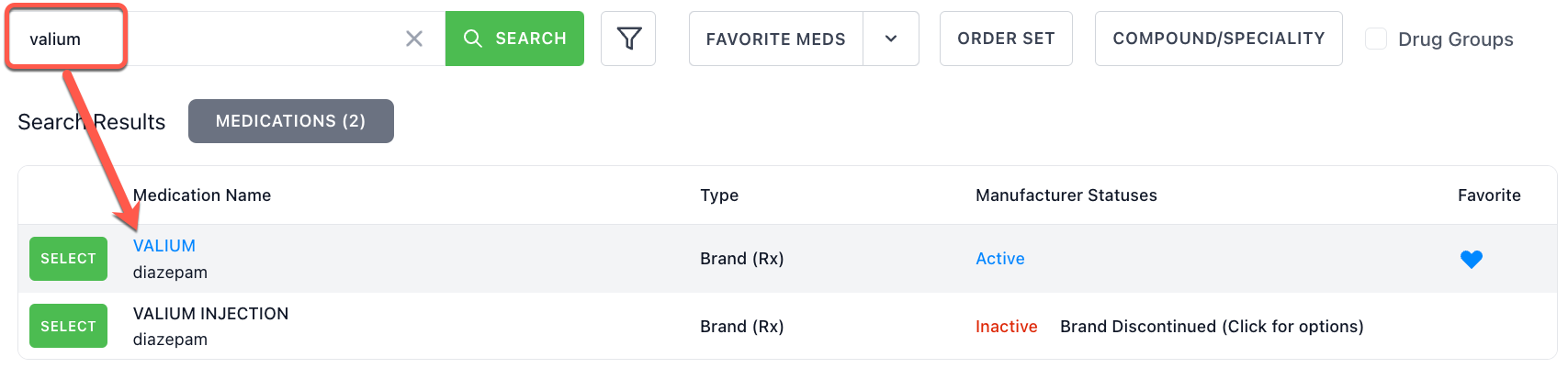
- After selecting the drug, you will see options to select the medication format. Choose a strength from the Drug Details list. Note: Click "SELECT A DIFFERENT DOSE" if you do not see the strength/dose you need.
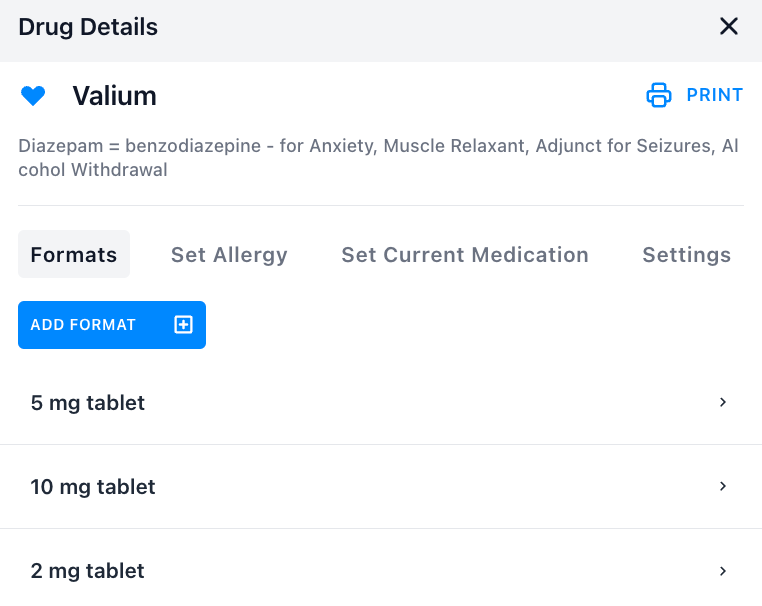
- After selecting the strength, you can select from a common list of formats that have pre-defined quantity and directions (SIG).
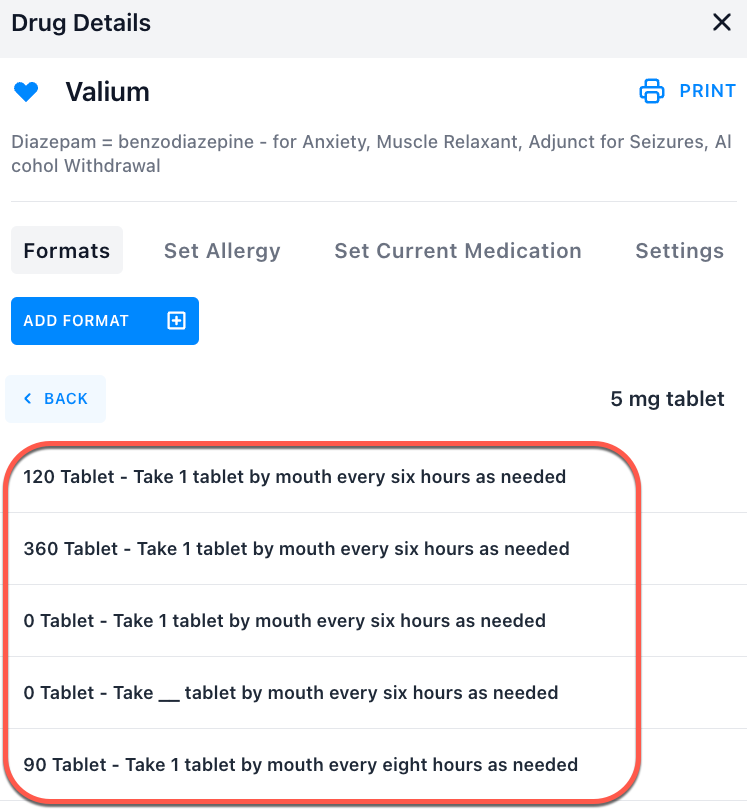
- You will then be at the Prescription Preview window, and you can complete all appropriate fields for the prescriptions.
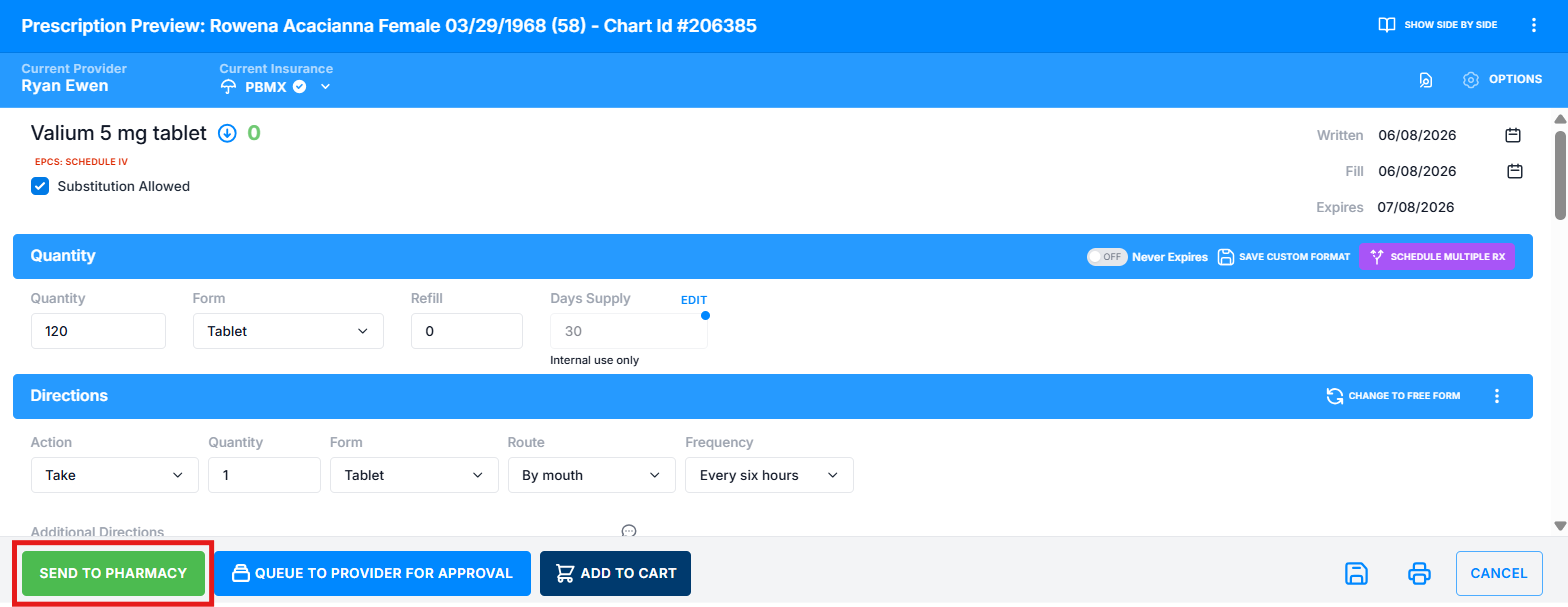
- When you have completed all fields, you can then click SEND TO PHARMACY.
Article Number: 95
Author: May 15, 2026
Last Updated: Jun 8, 2026
Online URL: https://help.wyliebiz.com/article.php?id=95