How To Add an Appointment Resource
Resources can be anything of limited quantity required to perform a specific service. Common examples of resources include rooms or equipment, such as a scale or microneedling device. Adding these resources in Wylie and then adding them to a specific service ensures that the limited resource is not double-booked by a client scheduling their services online.
How to add a resource:
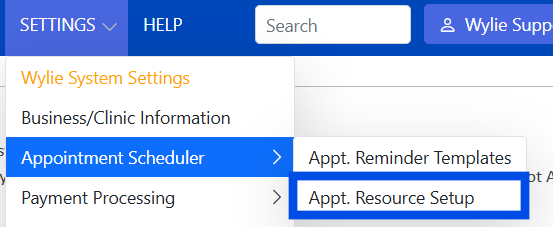
1. Go to 'Settings' menu in the top blue bar, then 'Appointment Scheduler', and 'Appt. Resource Setup'.
2. Select the 'Add Resource' button at the top of the table.

3. Choose a 'Resource Type' from the drop down. Common 'equipment' includes a scale, microneedling device, and lasers.
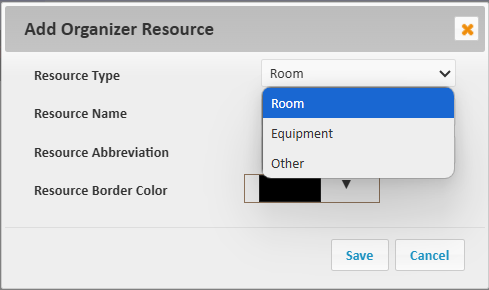
4. Type the 'Resource Name', E.g. Room 3, Laser, Scale. Then enter the 'Resource Abbreviation', which is what will appear on the appointment.
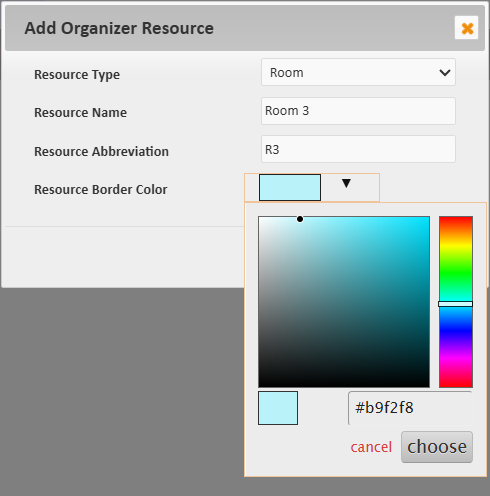
5. Select the 'Resource Border Color' that will represent the resource when looking at the calendar. Choose the color by selecting the triangle icon, then selecting the colour on the right side of the pop out, then the specific shade on the larger block, select 'choose' when you are happy with your color. This colour displays as a border around the appointment block.
Once you are finished adding the resource, you can add this to a specific service, so that any time the service is booked online, the system will not double book the limited resource.
How to add a resource to a service:
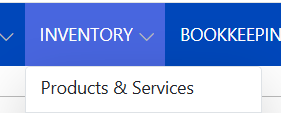
1. Go to the 'Inventory' menu in the top blue bar. Then, select 'Products & Services' and once you are in the products and services table, select the 'Add a New Product or Service' button at the top of the table, or to edit an existing service, select the pencil icon to the right of the service.

2. For steps on how to fill out the new service form click here.
3. In order to add a resource, you must first select 'yes' to the 'Show in ebooking System?' setting.

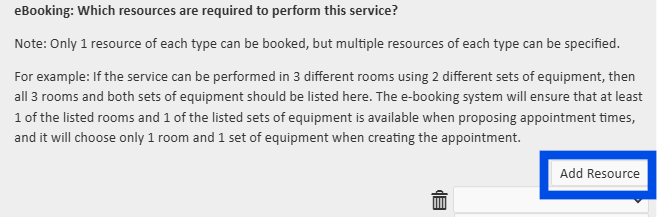
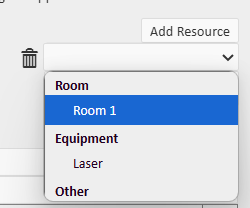
4. Choose 'Add Resource' and choose the appropriate resource associated with this service from the drop-down. This will ensure a service is not double-booked when it requires a limited resource.
Note: Only 1 resource of each type can be booked, but multiple resources of each type can be specified.
For example: If the service can be performed in 3 different rooms using 2 different sets of equipment, then all 3 rooms and both sets of equipment should be listed here. The e-booking system will ensure that at least 1 of the listed rooms and 1 of the listed sets of equipment is available when proposing appointment times, and it will choose only 1 room and 1 set of equipment when creating the appointment.
5. Once you have added all of the resources, 'save' the form.
How to choose a resource when booking for the client in Wylie (as opposed to online):
* It can be helpful to book services requiring a resource in 'resource' view, which allows you to see when resources are being utilized.
- Select the day and time to schedule the appointment.
- Choose the required 'resource' from thedrop down.
-

- Once you have added all of the necessary resources, save the appointment form.
The border surrounding the appointment block represents the specific resource on the schedule (see example below).

Article Number: 75
Author: Jun 10, 2025
Last Updated: Jun 23, 2025
Online URL: https://help.wyliebiz.com/article.php?id=75