Ideal Protein Platform Integration: Preordering
Estimated Reading Time: 4 MinutesWylie is now integrated with the preorder feature on the Ideal Protein Platform. This enables preorders placed by dieters on the Ideal Protein platform to be automatically created in Wylie's preorders section. Then, in Wylie, payment can be processed and inventory can be tracked appropriately.
To activate the integration and connect your Ideal Protein platform with your Wylie system, follow the steps below:
1. Log in to Wylie and go to the 'Settings' menu, then 'Integrations/Plugins'.
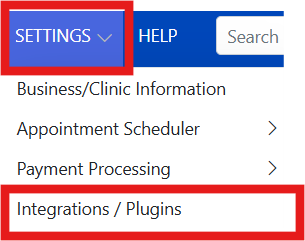
2. To the right of the 'Ideal Protein' option in the table, select 'Activate', then 'Settings'.


3. Select 'Regenerate Auth Key'.

4. Copy the 'Auth Key (required)' that was generated - this is a long string of characters.

5. Now, log in to your clinic's Ideal Protein platform.
6. Once logged in, on the left-hand side select 'accounts', then 'clinics', and select the 'i' icon beside the clinic name.
7. Choose 'Wylie Integration' and paste the 'Auth Key' that you copied from Wylie into the 'Wylie API key' field.
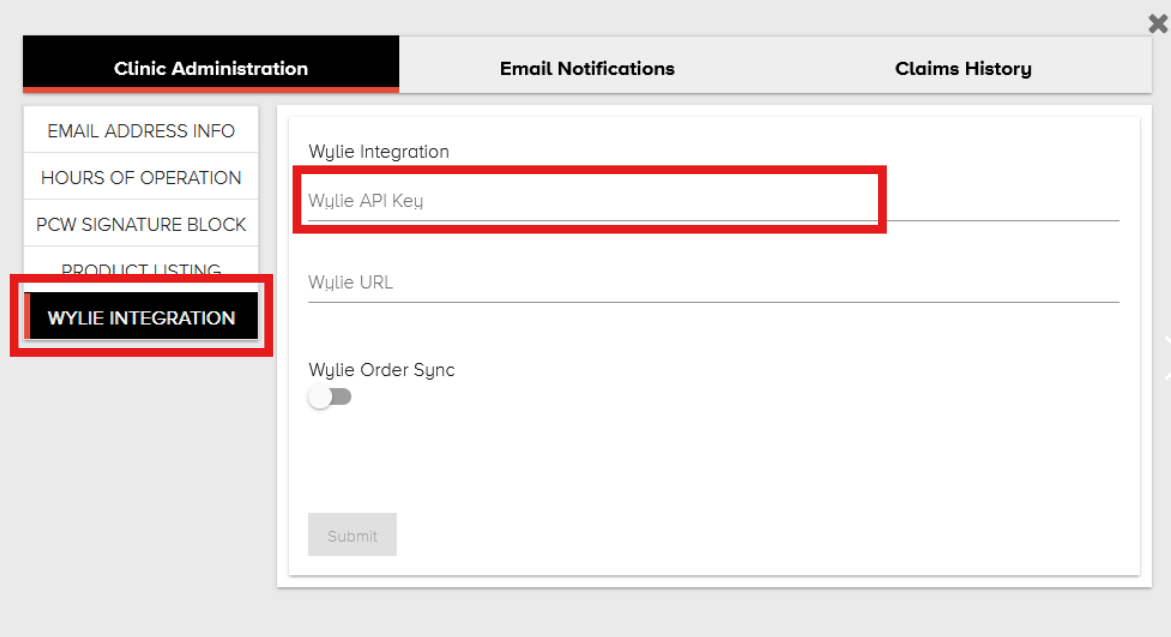
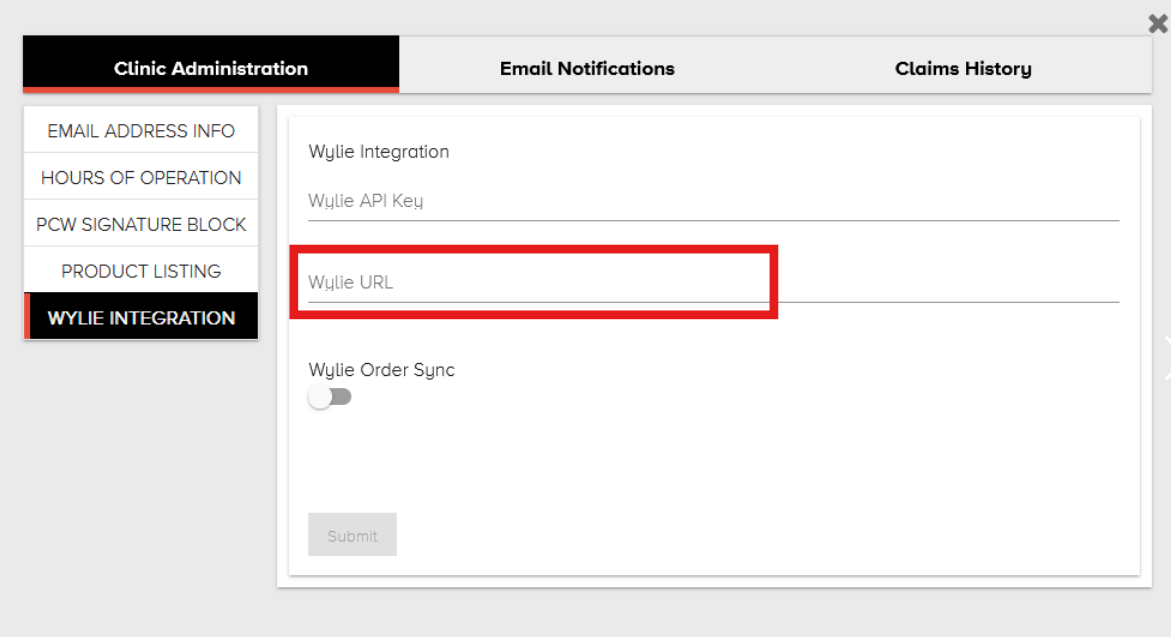
8. In the 'Wylie URL' field, enter the last part of your Wylie URL. You will find your Wylie URL in the browser address bar when you are logged in to Wylie, and it is typically related to your clinic name. Copy and paste only the part after the / following wyliebiz.com/ and before the next /.
Here is an example: 
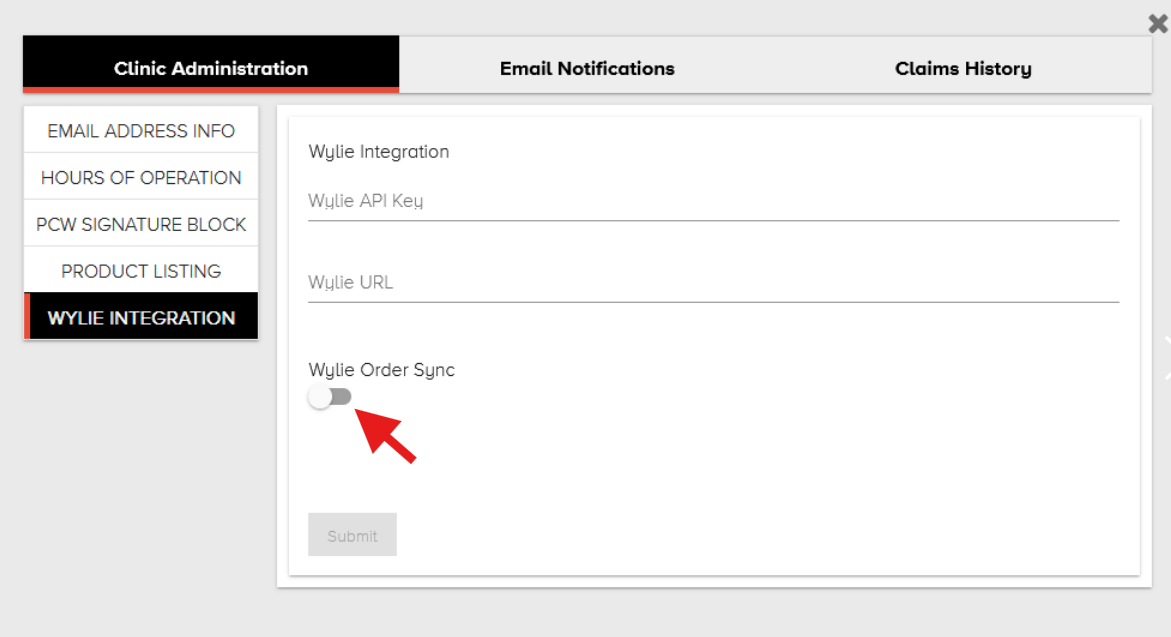
9. Lastly, toggle on 'Wylie Order Sync' and 'Wylie Inventory Sync' (if visible), then select 'submit'.
Note: Product formats available to order on the Ideal Protein platform are based on box, 6 pack, etc, not packet, bottle, etc.
Coming soon: The Ideal Protein platform will soon sync with your current inventory in Wylie. For now, please ensure you swap out any products you do not currently have in stock for pick-up orders before finalizing the invoice.
Once a dieter places a preorder on the Ideal Protein platform, it will appear in Wylie. Here are the steps to process this preorder in Wylie:
1. In Wylie, go to the sales register by selecting the cart icon on the top blue bar.
2. Select the 'view preorders' button, located at the top of the sales register cart.
3. Select the arrow icon to add a preorder to the cart. 
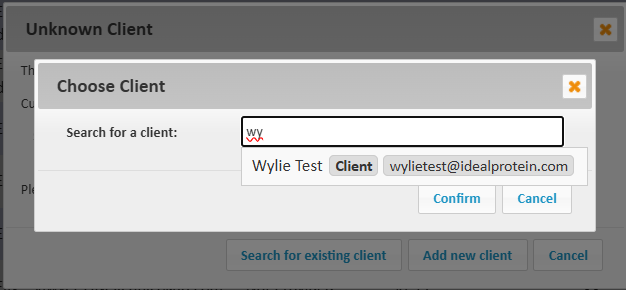
4. Wylie will try to match the email of the dieter to an existing client account in Wylie. If Wylie cannot find a matching email address and you believe the dieter in your Wylie system with a different or missing email, you will be able to select 'Search for existing client '. Then, search the existing client's name, select their name from the drop-down, and 'confirm'. Alternatively, you can create a new client account by selecting 'Add new client'.
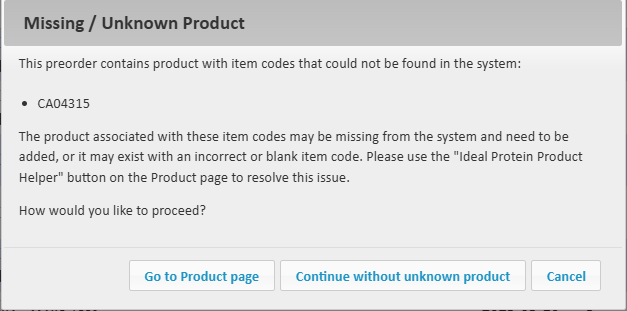
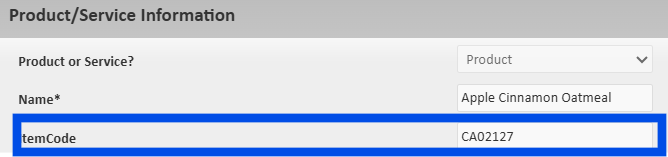
4. Wylie uses the 'item code' associated with Ideal Protein products to match products in Wylie. If a product is missing an item code, you will receive a 'Missing/Unknown Product' warning when trying to add the product to the cart. Select 'go to product page' to add or update the missing information.
5. Then, select 'Ideal Protein Product Helper' and choose the appropriate catalog based on your country. 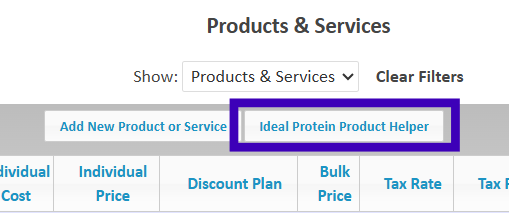
6. The 'Ideal Protein Product Helper' offers a 'quick fix' section, where Wylie will find and update missing product information. However, you will need to double-check the list and deselect any product that may not have accurate information. Once you have reviewed all of the information, specifically the 'fix' column, select 'fix selected products' button at the bottom to update all the selected products.
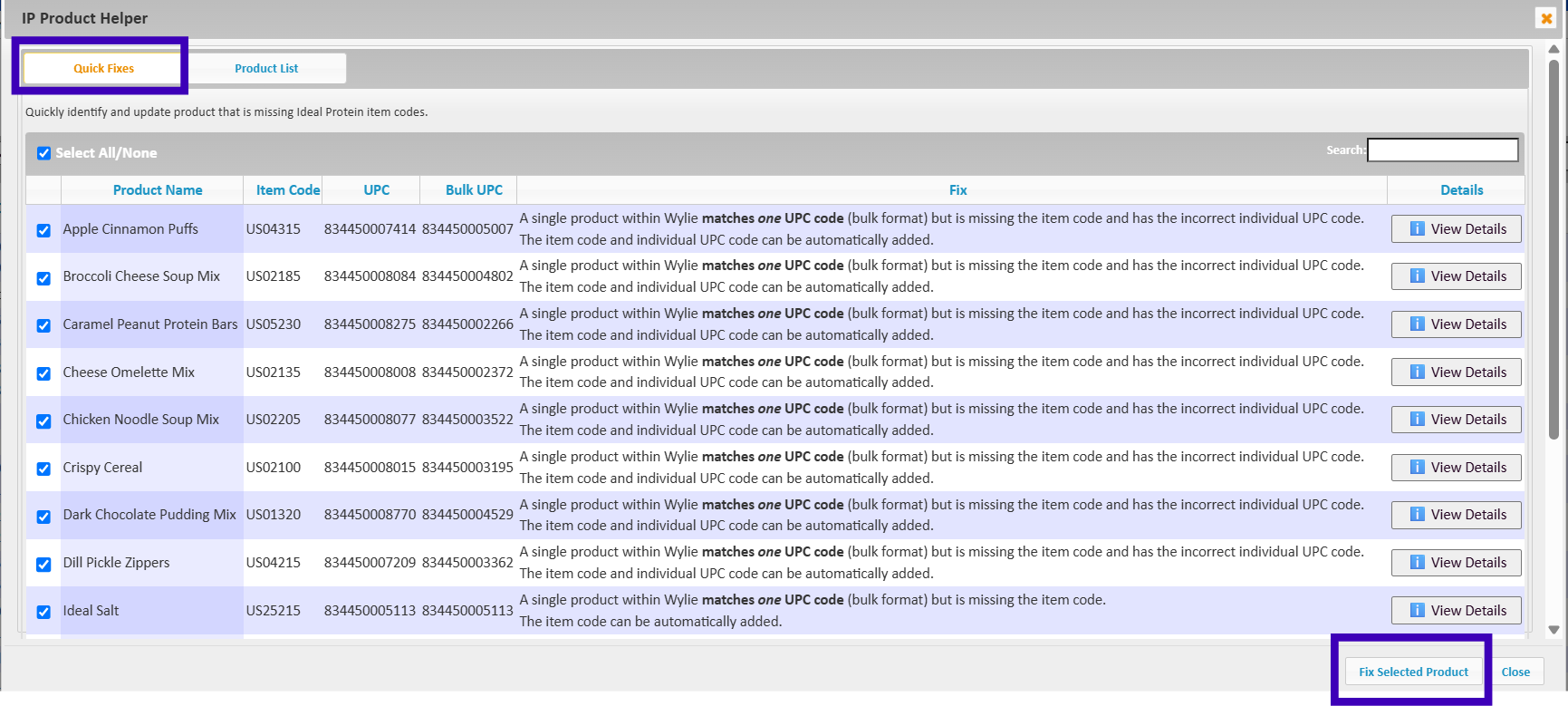
7. The 'product list' section in the 'ideal protein product helper' provides the item codes needed to update any existing products. You will either be given the option to update the item code or add the product if the system does not recognize either UPC codes.
8. The product helper will provide the option to 'Add Product', or 'View Details' and 'Edit Product' to add the missing 'Itemcode'.
Be cautious when selecting 'add product' as this product may be in your system already with incorrect bulk and individual UPC codes. If this is the case, copy the correct item code and add it to the existing product information in the product table, as you would normally edit a product.

Once you have added the appropriate item codes for all of the products ordered, go back to the sales register, select the 'View Preorders' button, then the arrow icon to add the preorder to the cart, and you will no longer receive any errors.
Now you may process payment and complete the invoice as you normally would in Wylie.
Need help?
Call 1-888-688-1674 or Email: info@wyliesystems.ca