How To Automatically Send Pre and Post Care Instructions
Estimated Reading Time: 3 MinutesYou can automate the process of sending pre and post care instructions for a service or procedure. By creating email templates in Wylie that include pre/post care instructions in the body of the email or as an attachment, you can then add or edit a service and configure the template to be sent at a specific time when the service is booked.
To create an email template:
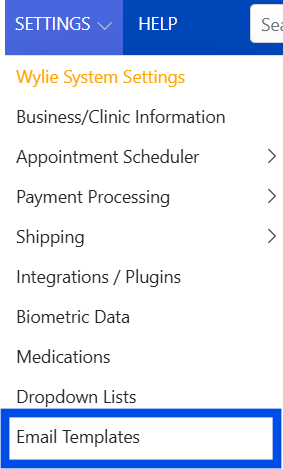
1. Go to 'Settings' menu, then 'email templates' to begin creating your email template.
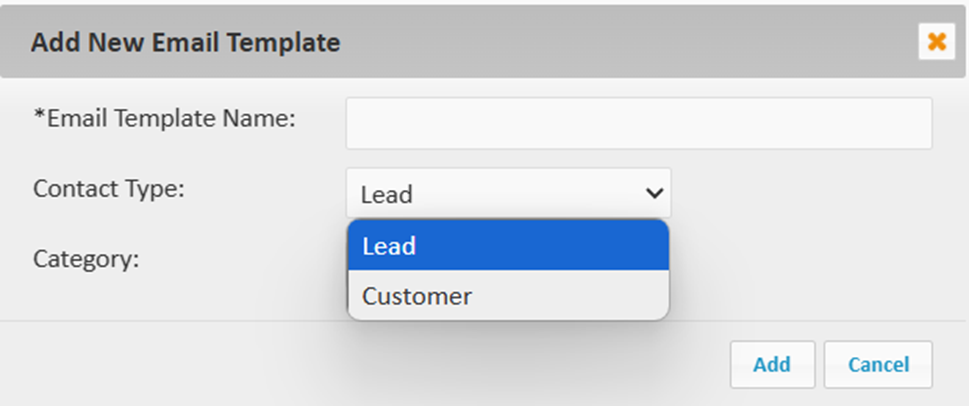
2. Select the 'Add New' button at the top of the page, enter the 'Email Template Name:' (the client will not see this template name), then choose a 'Contact Type'.
'Lead' indicates this email is intended for the potential customers in your 'leads' list and will automatically be categorized as a 'marketing email' by default. 'Customer' indicates this email is for current customers in your customer or patient list.
If the email is intended for current customers, you will need to check the box if the email is for marketing purposes. 
3. Enter a new category for this email template or choose an existing category from the drop down. 
4. Select 'Add' once all of the information is entered.
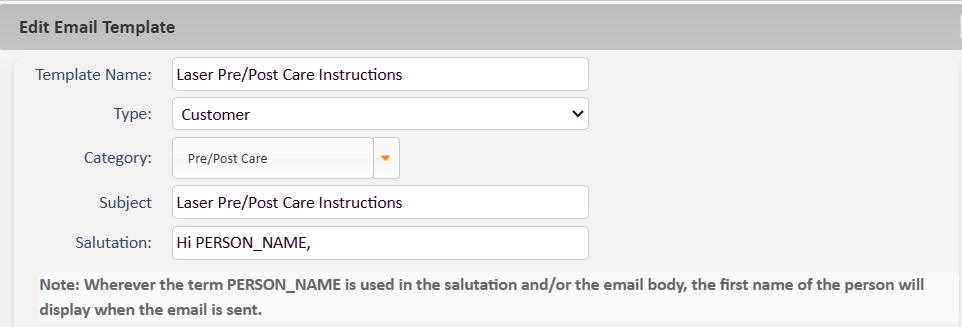
5. Enter the 'Subject' of the email and the 'Salutation'.
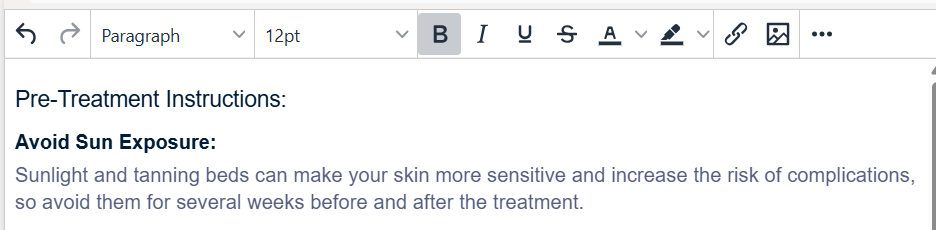
6. Then type the desired text for the pre/post care instructions into the body of the email.
7. If desired, attach the pre/post care instruction by scrolling to the bottom of the form and selecting the 'add attachment' button.

8. Select 'save' when you have finished filling out the template.
Automating the email template:
Once the email template is created, attach the template to the associated service for it to be automatically sent prior to or after an appointment.
- Select the 'Inventory' menu, then 'Products & Services'.
- Select the 'add new product or service' button to create a new service or edit an existing service.
- In the service creation form, you will find an area 'Emails to send when booking' where you can type to search or choose an email template from the drop down.
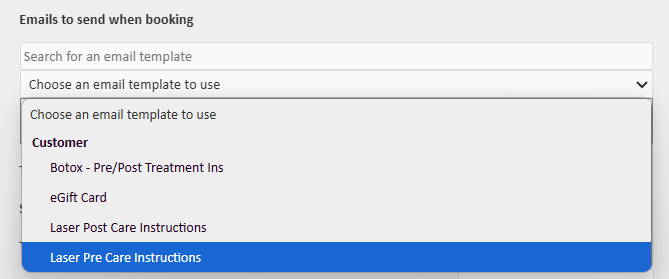
- Choose the corresponding pre and post care instruction email templates that you would like sent automatically prior to or following the service appointment.
- In the 'Timing' column for the email templates, choose when you would like each email template to be sent out.
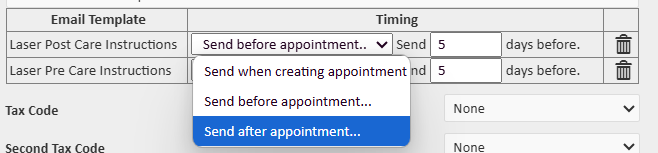
- 'Save' the form when you have attached the desired email templates and indicated when you want them to be automatically sent out.
Sending the email template at the time of booking (not automated):
Email templates can also be attached to a specific appointment at the time of scheduling.
- When scheduling an appointment in the scheduler, there is an 'Emails' section on the appointment creation form. This section is where you will designate which email templates are to be sent and their timing.
- Type to search or choose your desired email template from the drop-down.
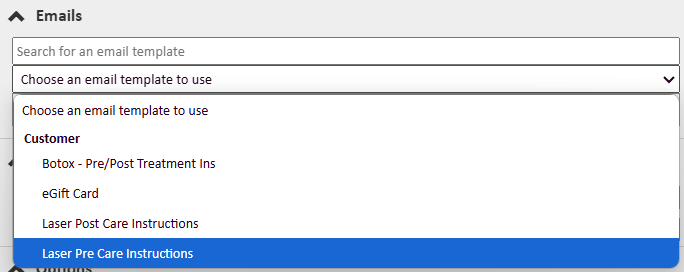
- Then, choose the desired timing for each email template.
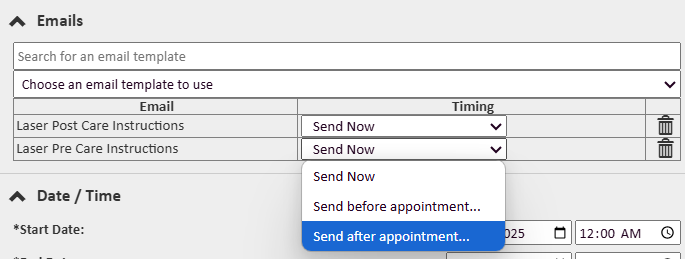
- Once you are done creating the appointment and select 'save', the emails will be sent according to the time you set.